LangWatch Scenario on the Platform
Go to Simulations → Scenarios in your project
What you can do now
Create scenarios from the Scenario Library
-
Go to Simulations → Scenarios in your project
-
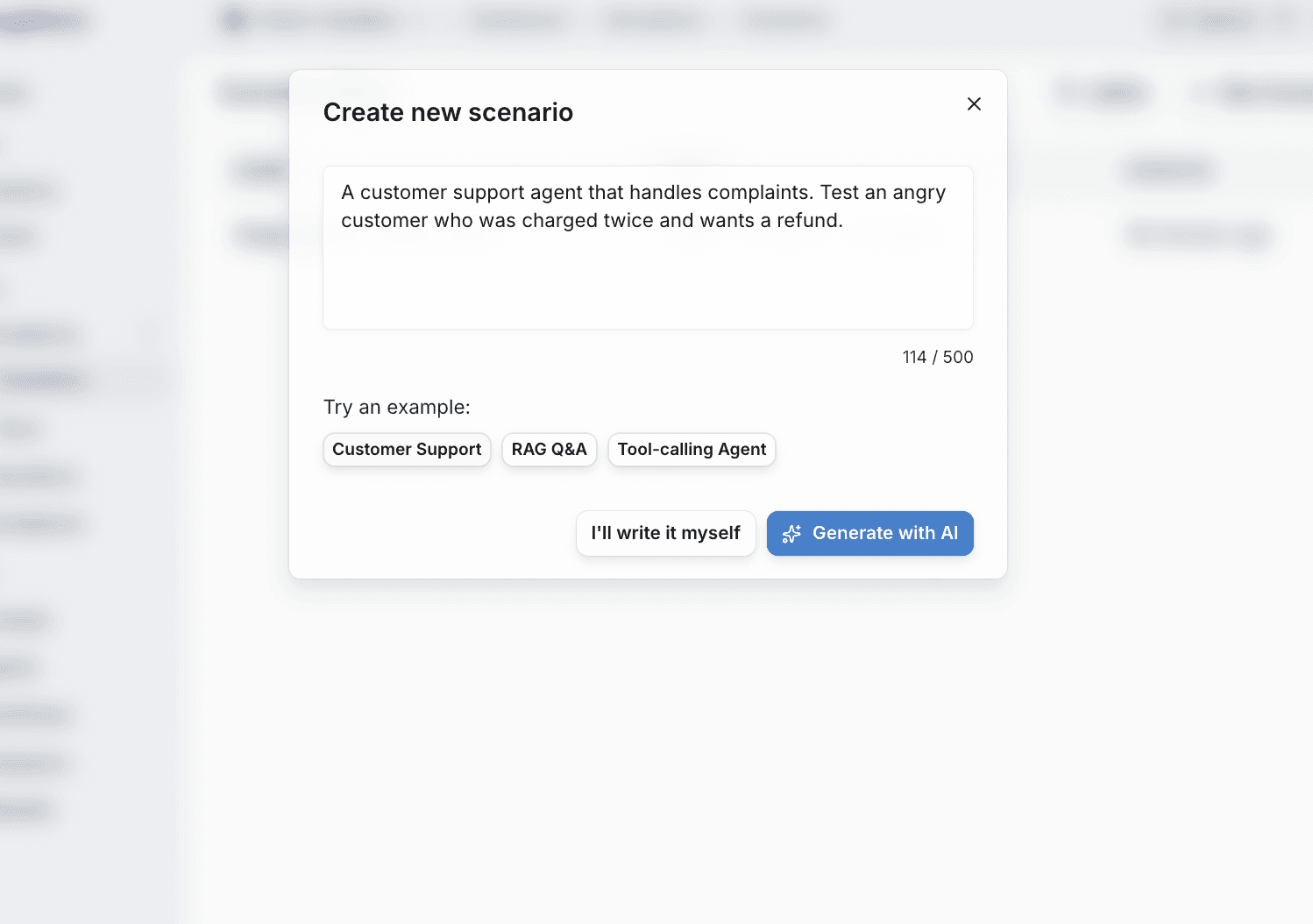
Click New Scenario to open the creation modal
-
Choose an example template (Customer Support, RAG Q&A, Tool-calling Agent) or describe your own
-
Click Generate with AI to auto-generate a complete scenario, or I'll write it myself
Define situations and criteria
-
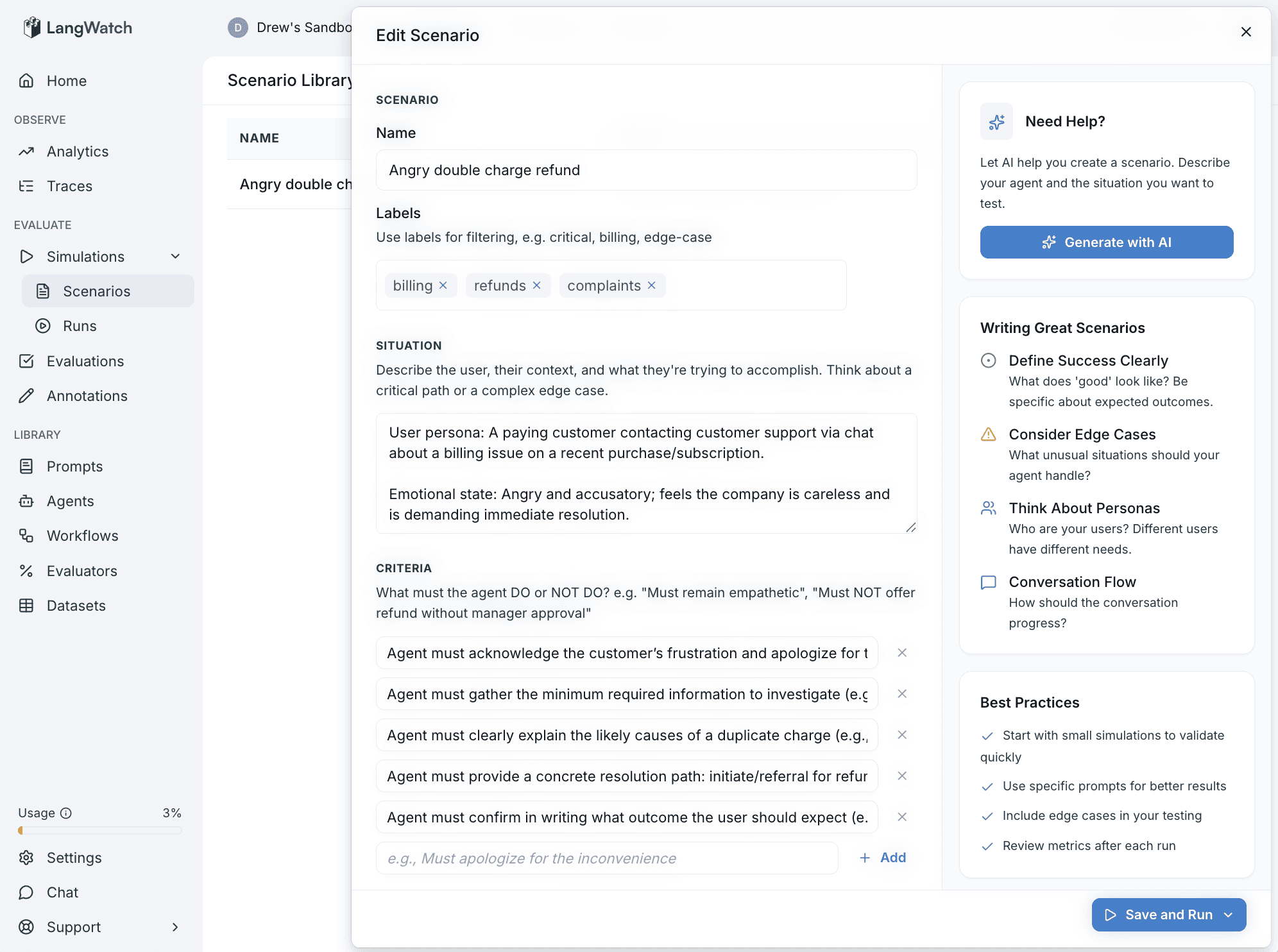
Situation - Describe the user persona, emotional state, and what they're trying to accomplish
-
Criteria - Add rules for what the agent must do or must NOT do (e.g., "Must acknowledge frustration", "Must NOT offer refund without approval")
-
Labels - Tag scenarios with labels like
billing,refunds,edge-casefor filtering
Run against prompts or agents
-
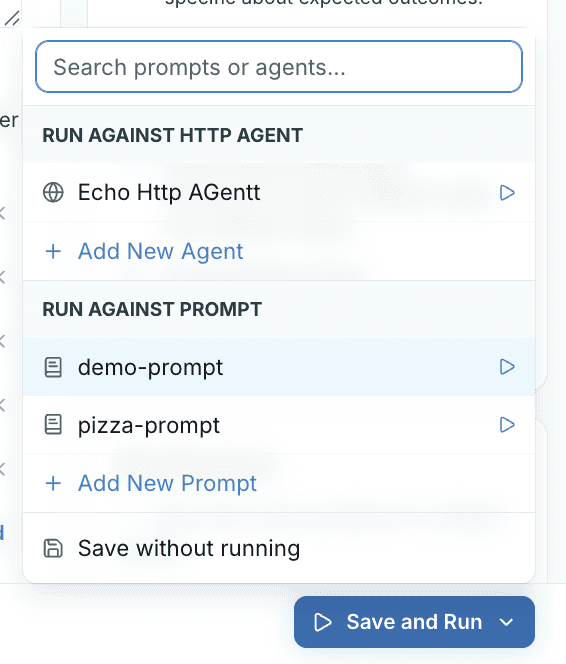
Click Save and Run to choose your target
-
Run against any HTTP Agent endpoint
-
Run directly against Prompts from your library - no integration code needed
-
Or Save without running to store the scenario for later
View results with full tracing
-
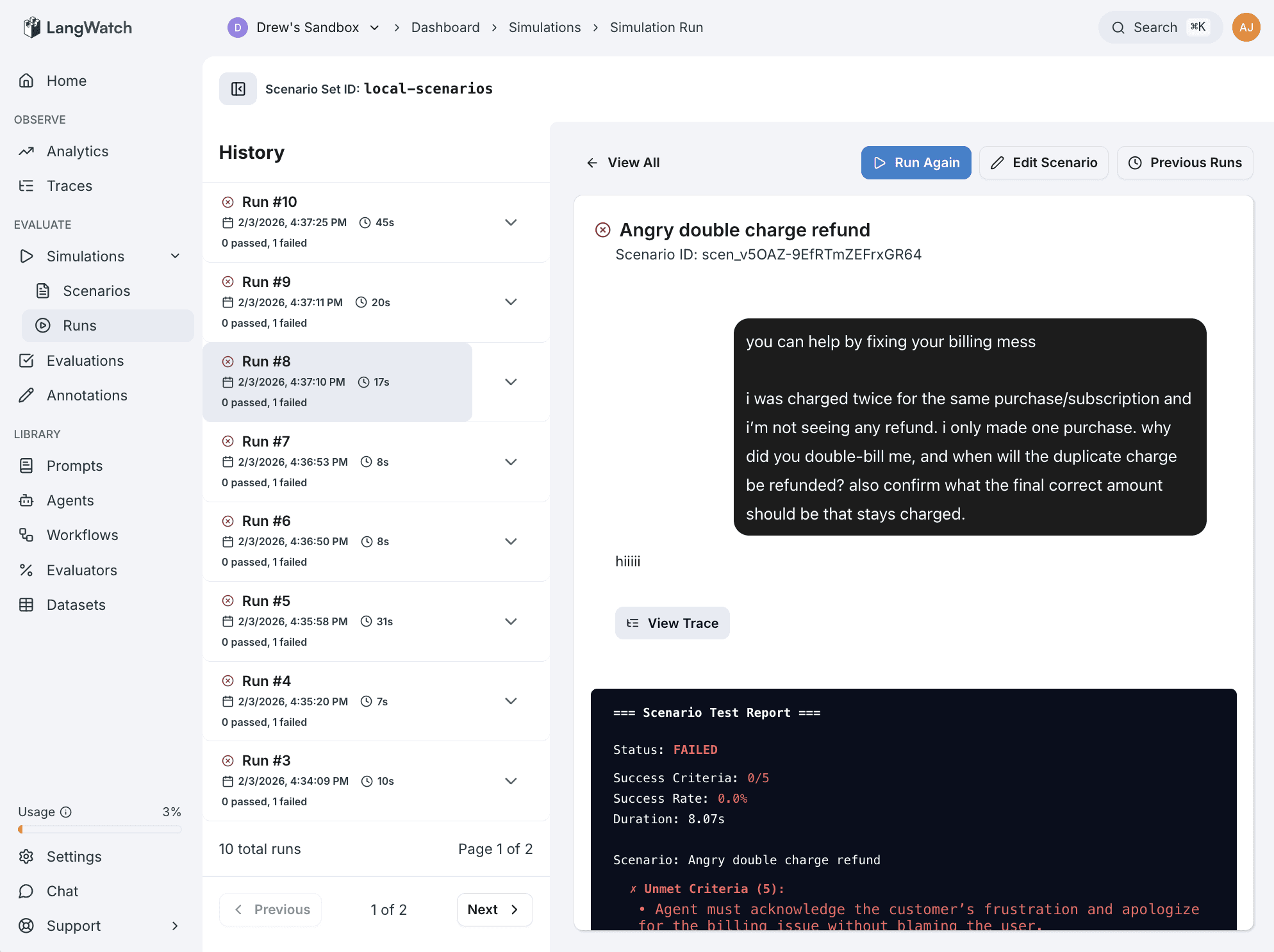
Watch the simulated conversation unfold in the Simulation Run view
-
See pass/fail status and which criteria were met
-
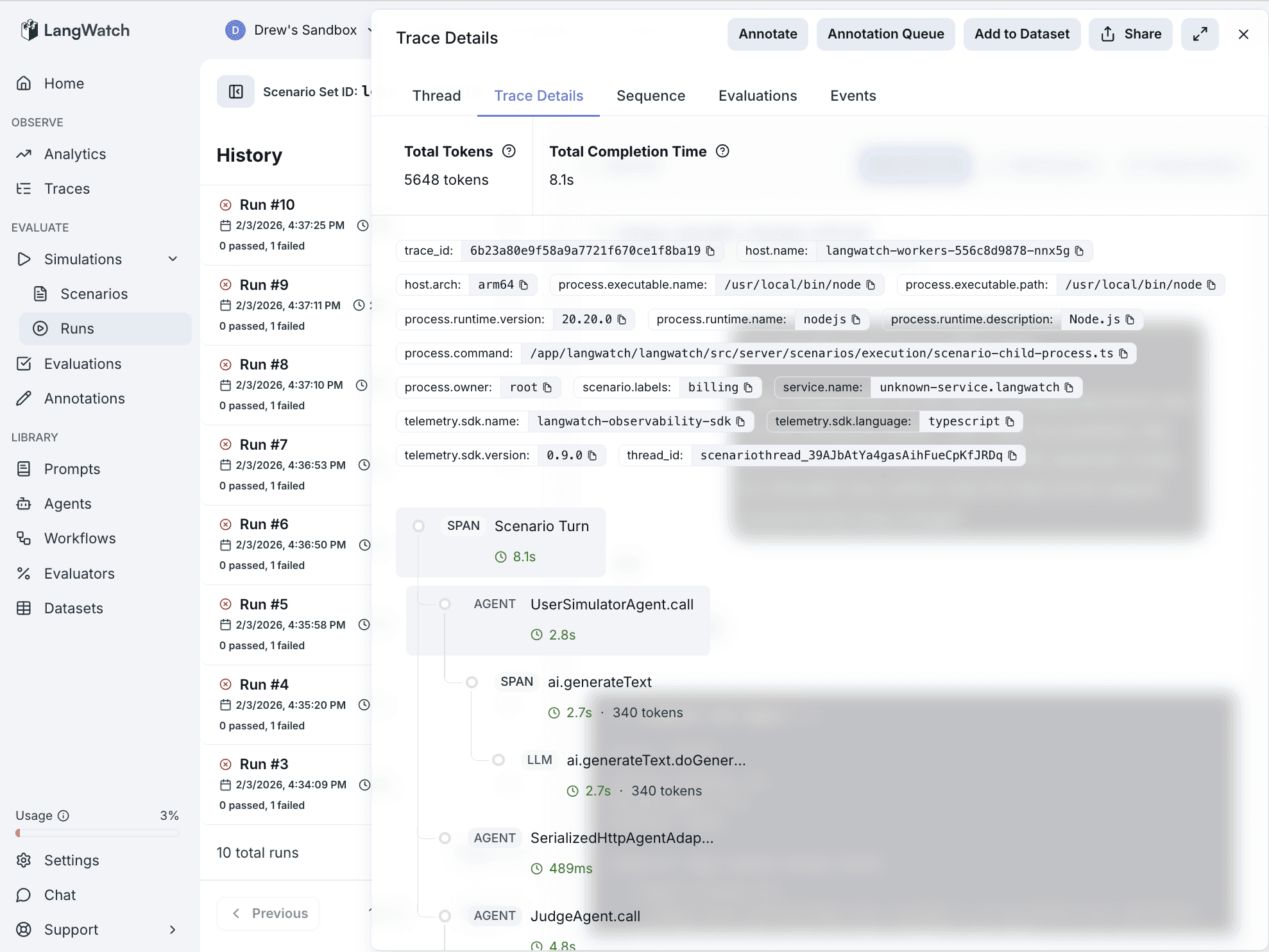
Click View Trace on any message to inspect latency, tokens, and tool calls
-
Compare runs over time in the History panel
Screenshots